
Docket Sheet Generator
Custom Docket Sheet Templates
Every organization starts with a read-only Default template. From there you can clone it, tweak the layout, or build one from scratch. Each template controls:
- Page orientation — Portrait (8.5 × 11) or Landscape (11 × 8.5)
- Rows per page — How many cases fit on a single page (1–10)
- Font family — Choose from several standard fonts
- Header area — Per-page header with county, date, time, and attorney name
- Row layout — The fields, labels, and dividers that repeat for each case
Visual WYSIWYG Editor
The template editor gives you a live preview of your layout as you build it. No guessing, no trial-and-error PDF exports.
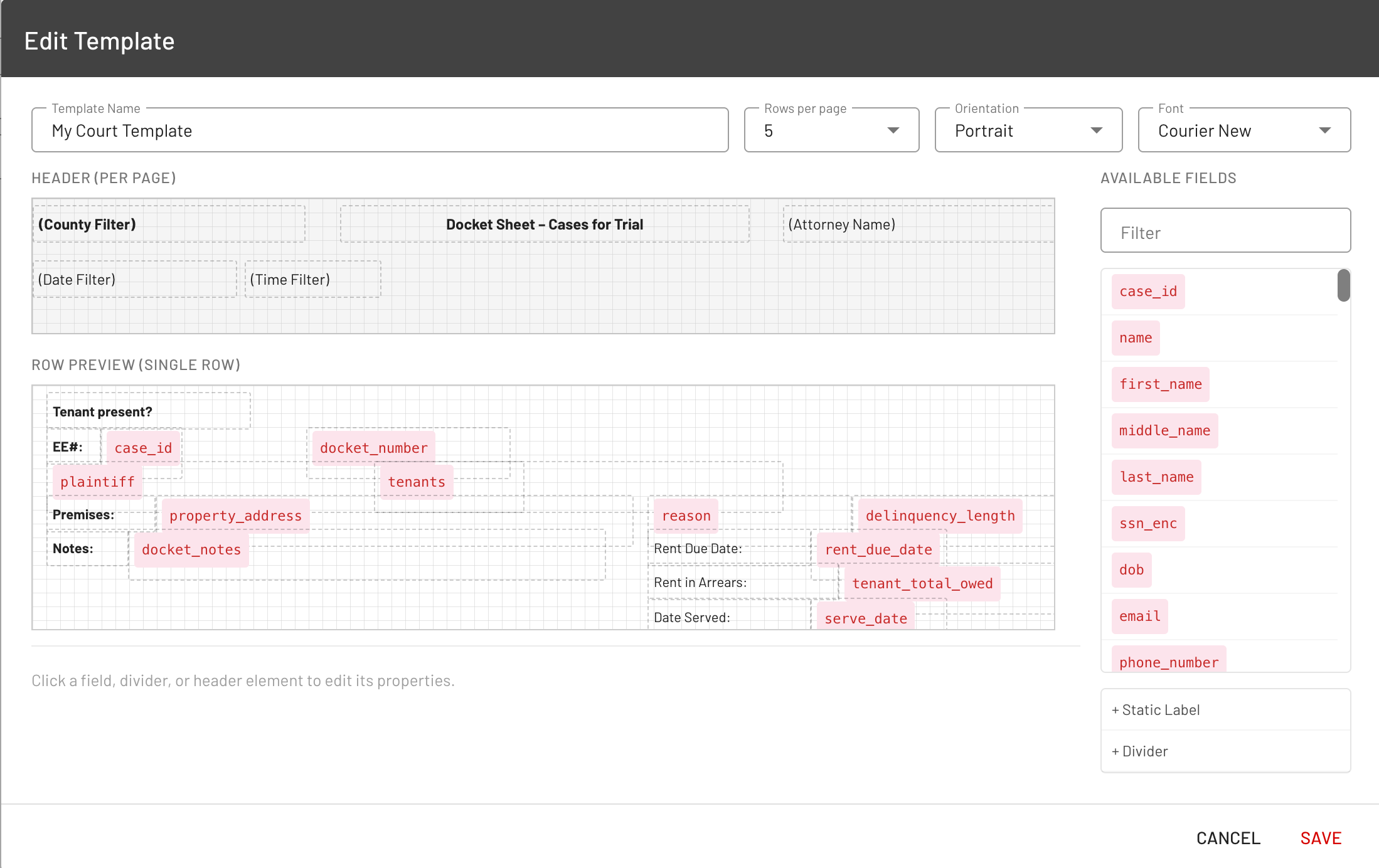
Header Preview — Design what appears at the top of every page. Add data fields that auto-fill from your filters (county, date, time, attorney name) or static text labels like your firm name.
Row Preview — Design a single row that repeats for each court task. Place fields anywhere on the grid by dragging, or enter exact coordinates in the properties bar.
Properties Bar — Select any element to edit its position (X/Y in inches), width, font size, bold, text alignment (left/center/right), and visibility.
Available Fields
The editor offers three types of elements you can place on the template:
Type | Description | Examples |
|---|---|---|
Built-in Fields | Case data pulled automatically |
, , , , , , , , , , , |
Custom Fields | Fields from your organization's intake form | Any custom field you've configured |
Static Labels | Free text that prints the same on every row | "Docket #", "Owed:", "Notes:" |
Dividers | Horizontal lines for visual separation | Configurable thickness and width |
Generating a Docket Sheet
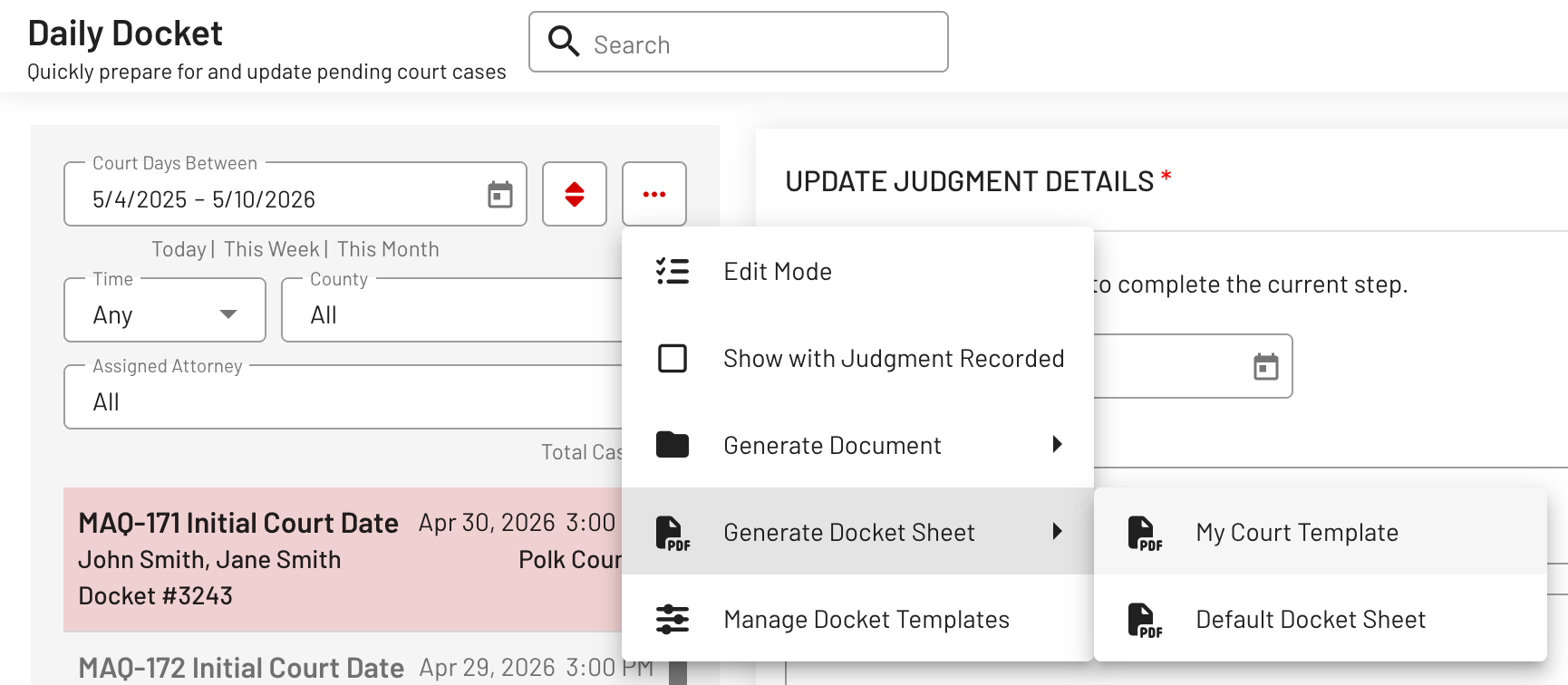
From the Daily Docket page, open the tools menu (⋯) and select Generate Docket Sheet, then pick your template. The PDF is generated from the currently filtered court tasks — so use the county, time, and attorney filters to produce separate sheets per courtroom or session.
The generated PDF includes:
- A header on each page with your configured header fields
- One row per court task with your field layout
- Automatic pagination based on your rows-per-page setting
- Page numbers in the bottom-right corner
Managing Templates
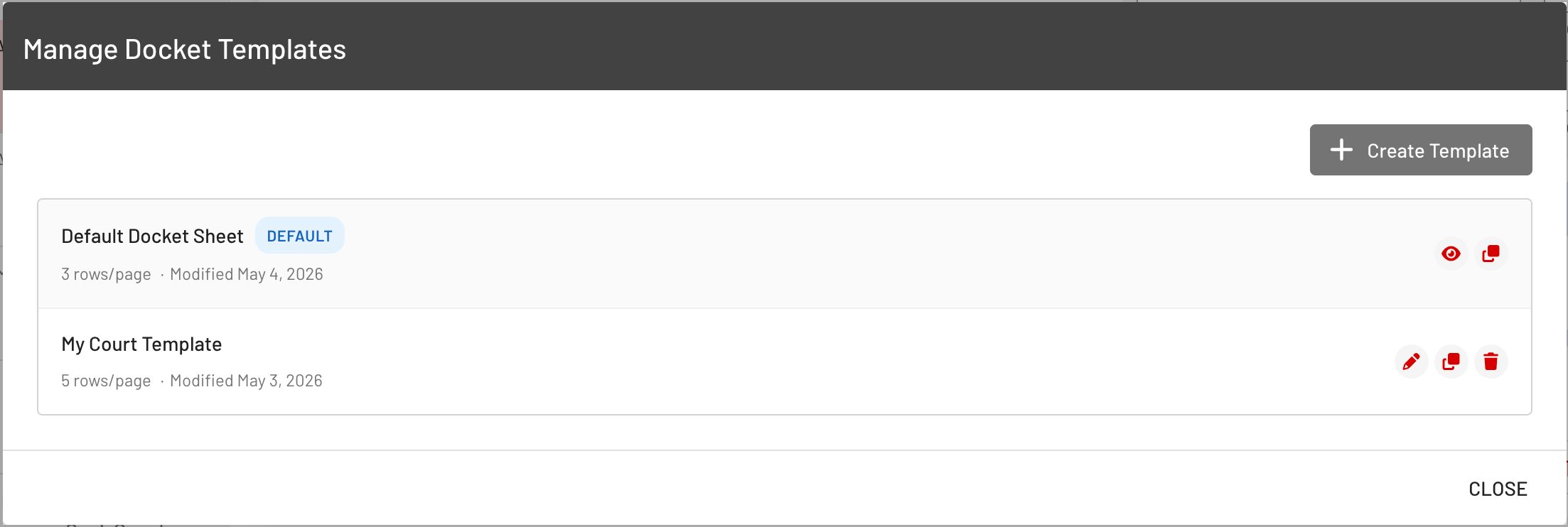
Open the tools menu (⋯) on the Daily Docket page and click Manage Docket Templates.
Action | Description |
|---|---|
Create | Start a new template from a blank canvas |
Clone | Copy any template (including the default) as a starting point |
Edit | Open the visual editor for your custom templates |
Delete | Remove a custom template (the default cannot be deleted) |
View | Inspect the default template layout (read-only) |
Template names must be unique within your organization.
Building a Template — Step by Step
- Open the editor — Click "Create Template" or clone an existing one
- Set page options — Choose a name, rows per page, orientation, and font
- Design the header — Add data fields (county, date, time, attorney) or static text. Position them by dragging or entering coordinates.
- Design the row — Click "Add Field" or use the Available Fields panel on the right. Place built-in fields, custom fields, static labels, and dividers.
- Adjust properties — Click any element to fine-tune position, width, font size, bold, and alignment in the properties bar
- Save — Click SAVE. Your template is immediately available in the Generate Docket Sheet menu.
Tips
- Filter before generating — The PDF only includes cases matching your current Daily Docket filters. Filter by county and time to produce per-courtroom sheets.
- Clone, don't start from scratch — The default template has a sensible layout. Clone it and rearrange rather than building from zero.
- Use static labels for context — Add labels like "Docket #" or "Owed:" next to data fields so the printed sheet reads clearly without column headers.
- Fewer rows = more space — If you have many fields per case, use 3–5 rows per page. For a compact list, 8–10 rows works well.
- Landscape for wide layouts — If you need many fields side by side, switch to landscape for the extra horizontal space.
- Resize with the handle — Drag the right edge of any field to resize it, or type an exact width in the properties bar.
It pulls every upcoming court appearance into a single view, lets you filter and sort by date, county, time, or assigned attorney, and gives you tools to update cases individually or in bulk — all without leaving the page. When you're ready to print, the new Docket Sheet Generator produces a polished PDF from a fully customizable template that you design yourself.