
For Attorneys: How to Clone a Closed Case
Managing multiple eviction cases for the same tenant or property can be repetitive. EasyEvictions's Clone Case feature lets attorneys or users with admin access recreate a closed case with all the details and documents pre-filled. This saves time, reduces errors, and ensures consistency across cases.
Follow the steps below to clone a case:
Step 1: Load the Closed Case
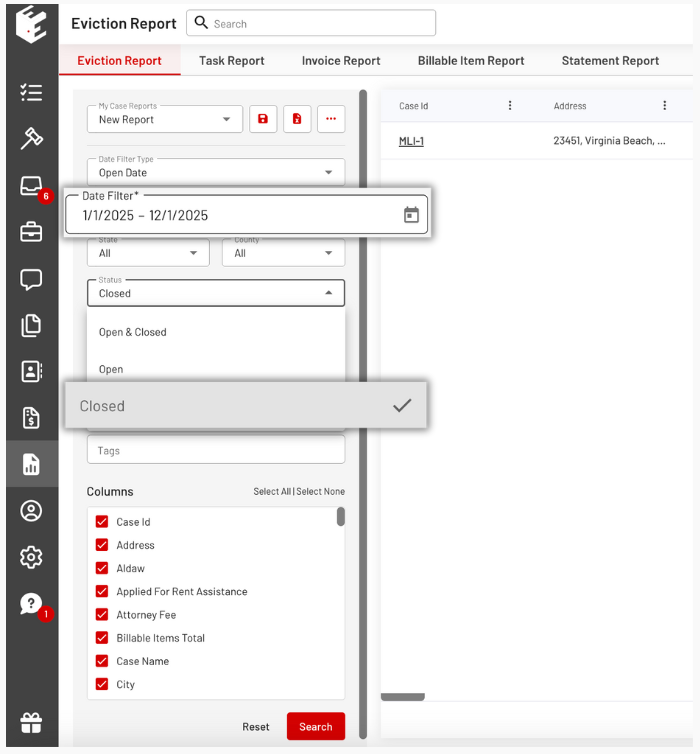
- To open a closed case, go to the Eviction Report by clicking the Reports widget.
- Use the filters as needed, especially the date filter, and select “Closed” under the Status dropdown.
- After applying your filters, click the Search button.
- The closed cases will appear on the right side of the page. Click on the case you want to open.
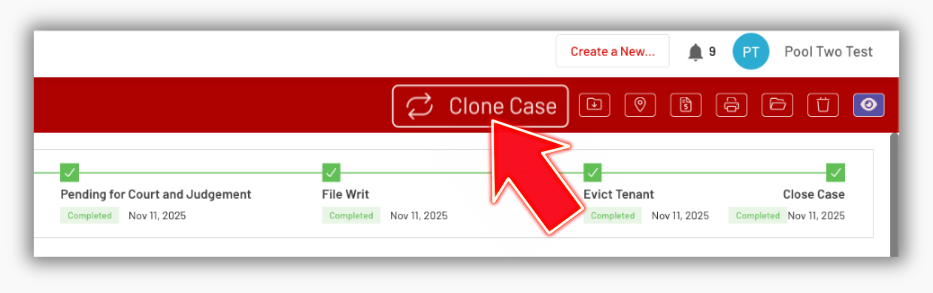
- Click the Clone Case button in the top-right corner of the page.
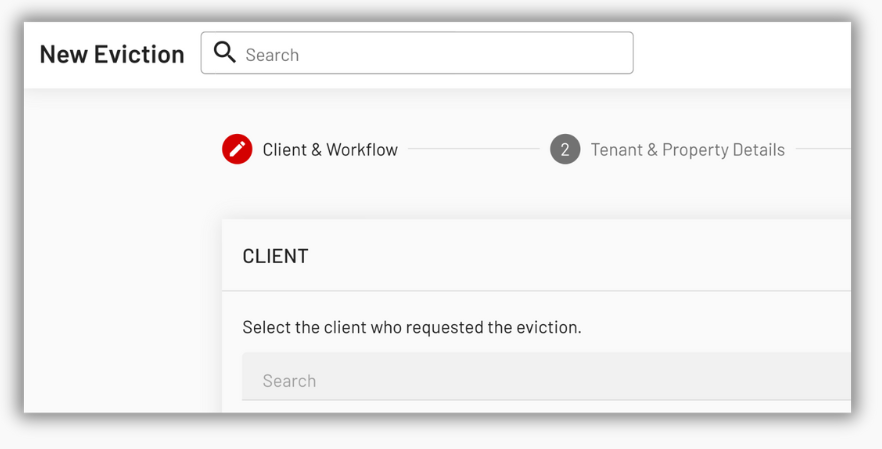
Step 2: Start the Intake Form
- After clicking the Clone Case button, this launches the eviction intake form with all fields pre-filled from the original case, including tenant information, property details, rent amounts, and more.
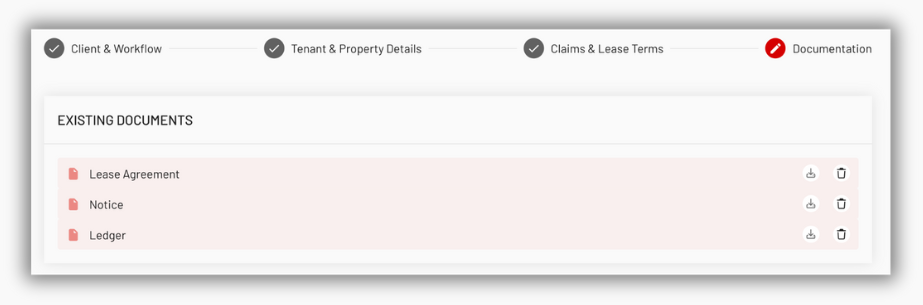
Step 3: Review the Document Page
- Documents from the original case ready to be copied
- Optional uploads for new documents
- No mandatory uploads (since cloned documents are used)
Step 4: Save the Cloned Case
- After clicking the Save button, a new Open case is created.
- It receives the next automatic case ID.
- All fields and documents match the original case.
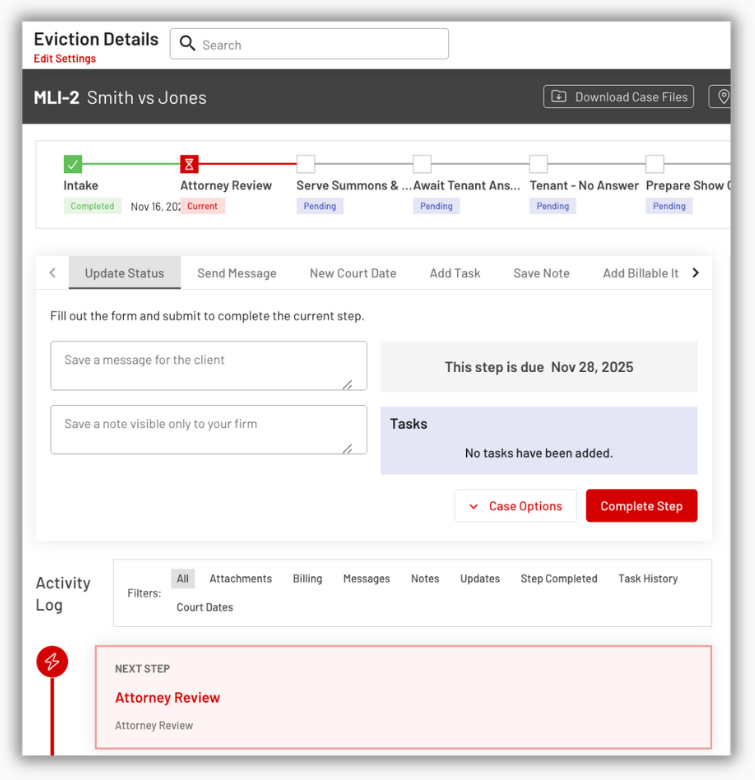
The Clone Case feature simplifies the process of refiling or recreating eviction cases, eliminating repetitive data entry and ensuring accuracy from one case to the next. Both attorneys and clients can quickly reproduce essential case information and documents, saving time and maintaining consistency across workflows.
If you need additional help using the Clone Case feature or any other EasyEviction tools, please reach out to our support team. We’re here to help!