
Requesting DocuSign Signatures
How to Send Documents for Electronic Signature
The new DocuSign integration allows you to seamlessly send generated documents for electronic signing directly from EasyEviction. This is ideal for notices, agreements, or any document requiring a signature.
Prerequisites
- Ensure your document template includes DocuSign signature fields using merge tags such as {{client_signature}}. These tags create invisible signature fields in the generated PDF that DocuSign will convert into signable areas. This can be a simple label on the form that is in white for invisibility.
- The template must be marked as DocuSign-compatible in your firm's document template settings.
- Your EasyEviction account must have DocuSign connected (set up in Firm Settings > Integrations).
- Your account must have an Enterprise tier at a minimum
Step-by-Step Process
- Generate the Document
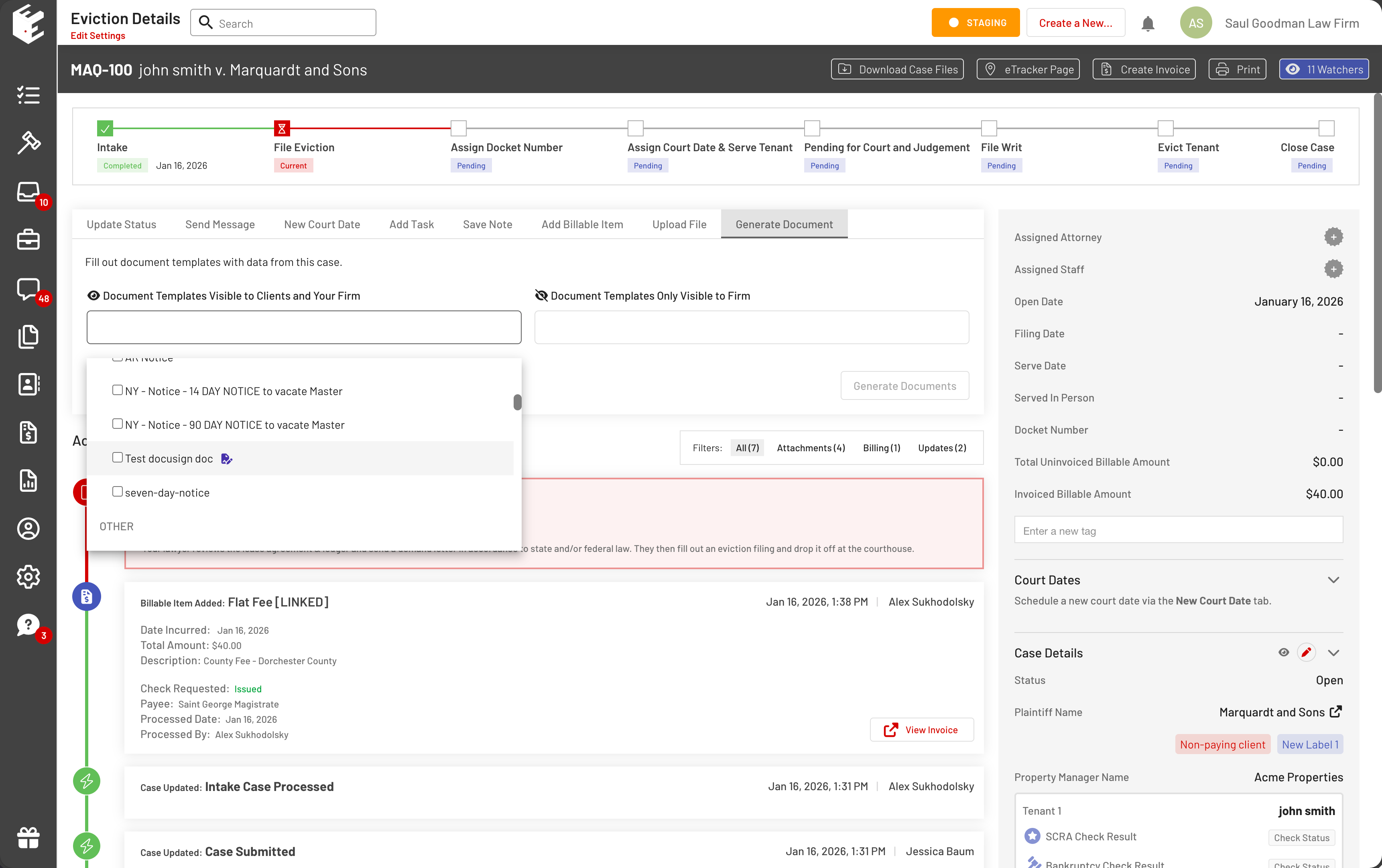
In the case, navigate to the Generate Document tab. Select a DocuSign-compatible template (e.g., marked by a blue document icon with a signature).
Fill in any required data and generate the document. It will appear in the Activity Log and Attachments as a "Generated" file, visible to the firm and/or client depending on template settings. - Send the Document to DocuSign
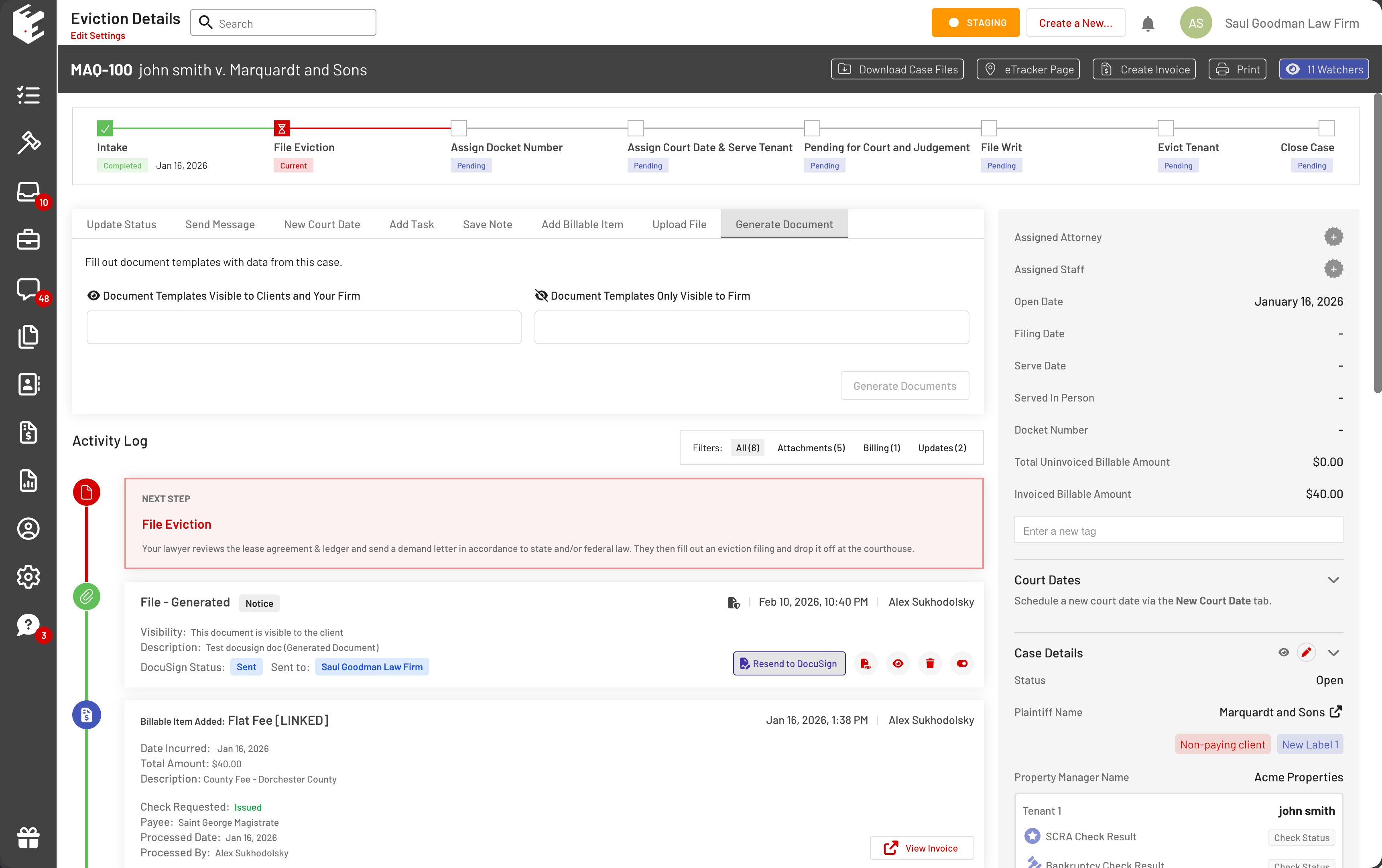
Locate the generated document in the Activity Log or Attachments. Click the Send to DocuSign button (or Resend to DocuSign if previously sent). A modal will open with:
Pre-filled recipient (e.g., client, attorney, or tenant email).
Pre-filled email subject and body (customizable).
Document preview. Review and adjust details as needed, then click Send. - Track Status in EasyEviction
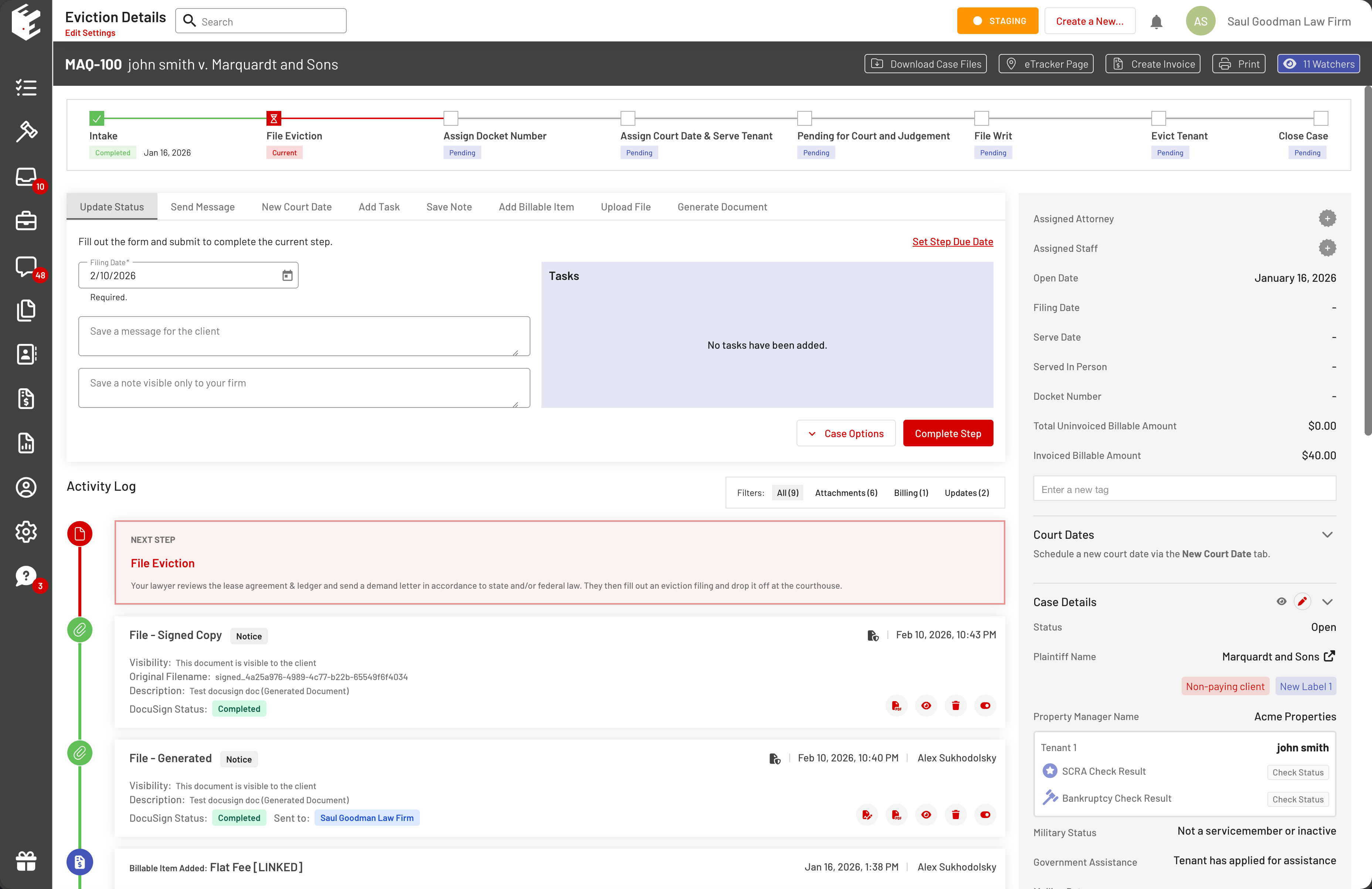
After sending, the document entry in the Activity Log updates in real-time with:
DocuSign status (e.g., Sent, Delivered, Completed).
Recipient information.
Options to resend or view history. - Recipient Receives and Signs
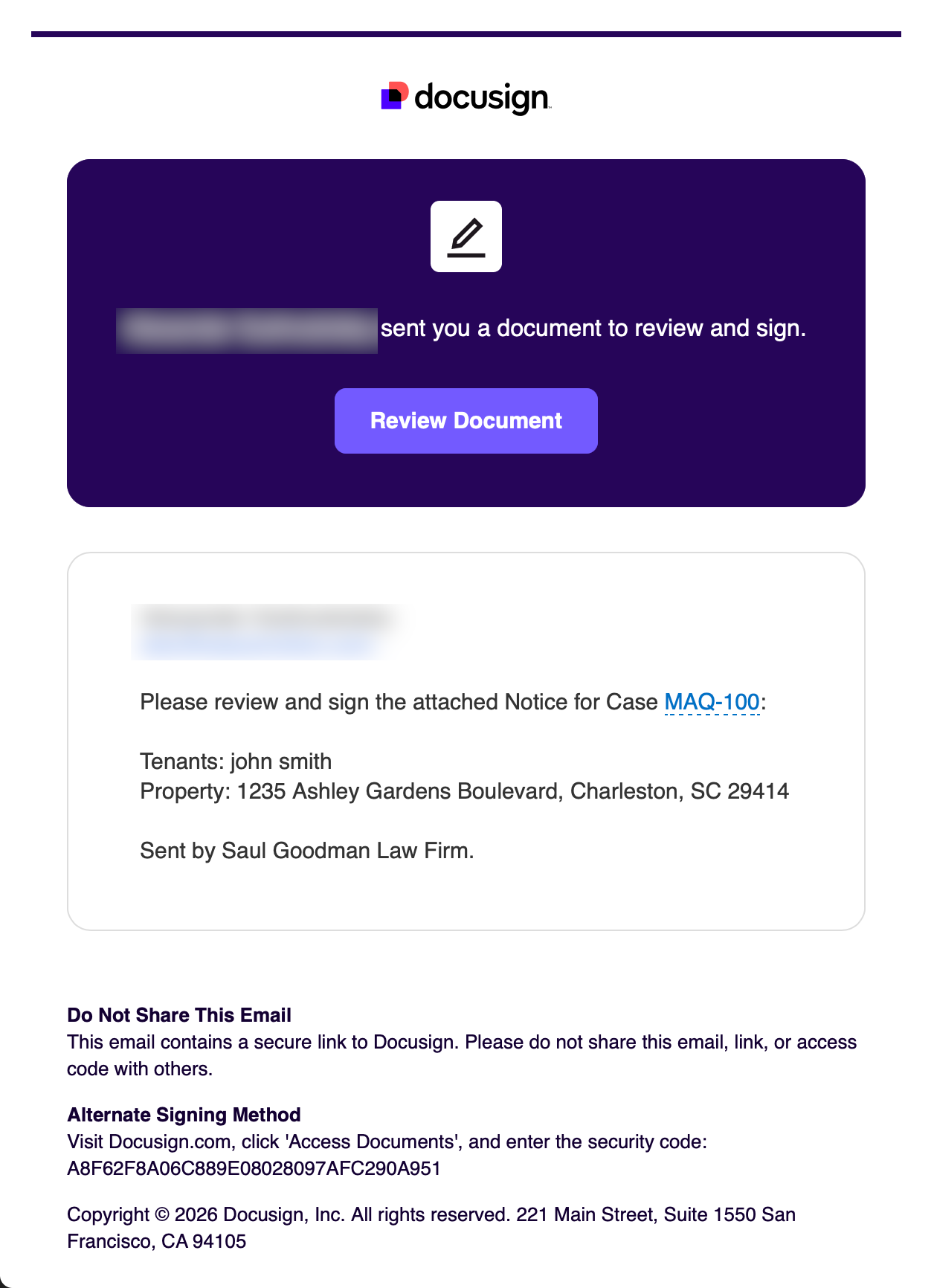
The recipient gets an email from DocuSign with a secure link to review and sign. Click the Review Document, adopt a signature (if first time), and sign in the designated fields (automatically placed where merge tags were used). - Finish Signing the Document
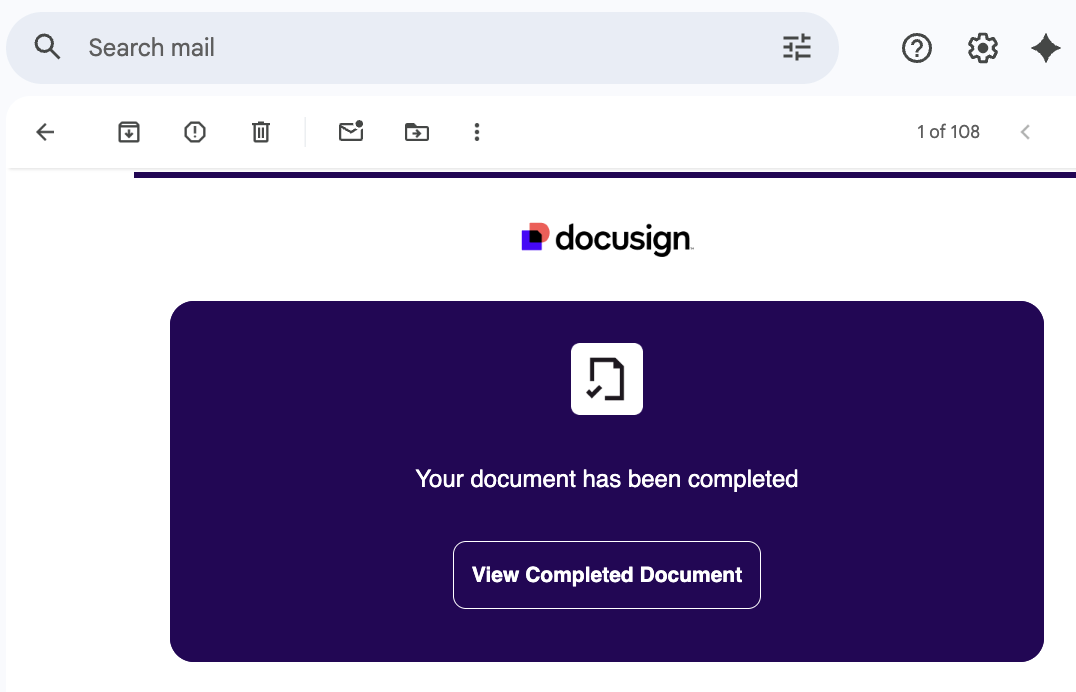
After clicking the Finish button at the bottom of the page, check your email to download or view the completed document.
Note: The recipient does not need a DocuSign account or to set up a free account to sign the document. - Signed Document Returns Automatically
Once signing is complete:
DocuSign sends the fully executed PDF back to EasyEviction.
A new Signed Copy attachment is automatically created in the Activity Log (e.g., "File - Signed Copy Notice").
The original generated document's status updates to Completed.
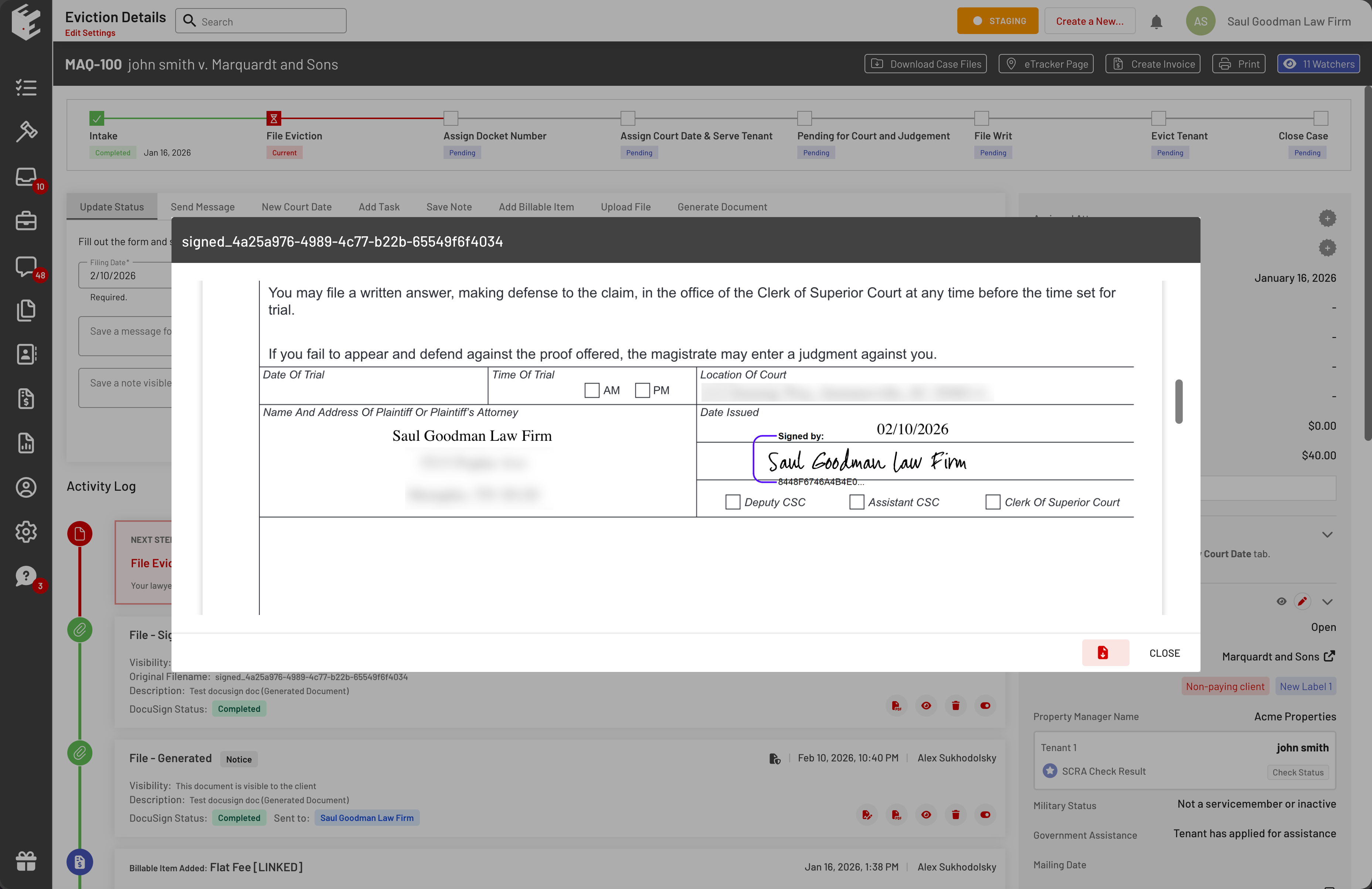
The signed version includes all signatures, dates, and a certificate of completion. - View the Signed Document
Click to preview any signed copy attachment to see the fully executed version with visible signatures. The signed PDF can be downloaded, shared with the client, or used in subsequent steps (e.g., filing the eviction).
Tips & Best Practices
- Visibility: Use "Visible to Clients and Your Firm" templates for client-facing documents to allow easy access in the client portal.
- Multiple Signers: Add multiple signature tags in your template for sequential or parallel signing (DocuSign handles routing).
- Resending: If a recipient doesn't sign, use Resend to DocuSign to send a reminder.
- Audit Trail: All DocuSign activity (sent, viewed, signed) is logged in the case Activity Log for compliance.
- Troubleshooting: If the signed copy doesn't appear, check your DocuSign connection in Firm Settings or contact support.
This integration saves time by eliminating manual uploads/downloads and ensures signed documents are securely stored directly in the case file. If you need help setting up templates with signature tags, see the Document Templates guide.
If you have any additional questions, please feel free to contact our Support team.